
How to Transfer WhatsApp Chats from Android to iPhone Without Google Drive
Learn how to transfer WhatsApp chats from Android to iPhone without Google Drive using Move to iOS, with key steps and requirements.

By News Desk · Verified Pakistan News Desk
Published · 6 min read
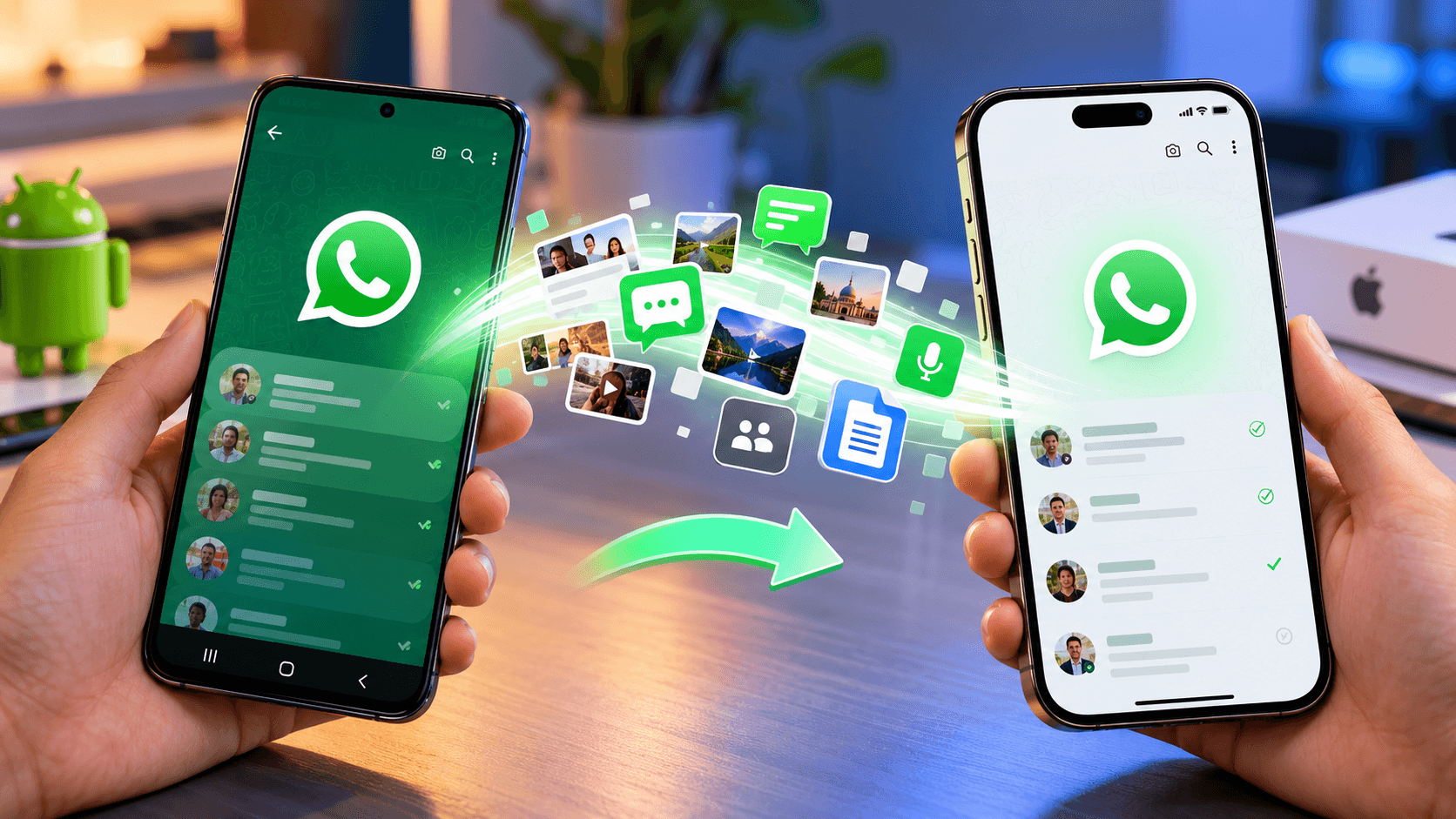
WhatsApp Transfer: 5 Key Steps from Android to iPhone
Moving from Android to iPhone does not mean you have to leave your WhatsApp conversations behind. You can transfer your WhatsApp chats, photos, videos and other supported data directly from an Android phone to an iPhone without relying on a Google Drive backup.
The official method uses Apple’s Move to iOS process during iPhone setup. WhatsApp and Apple support the transfer of WhatsApp messages and media as part of the Android-to-iPhone migration process. :contentReference[oaicite:0]{index=0}
WhatsApp Transfer from Android to iPhone: What You Need
Before starting the WhatsApp transfer from Android to iPhone, make sure both phones meet the required conditions.
Your Android phone should have Android 5 or later, while the iPhone should have iOS 15.5 or later. The latest available versions of WhatsApp on both devices should also be installed.
You also need the Move to iOS app on your Android phone. WhatsApp specifically recommends using Move to iOS for this type of transfer rather than third-party migration applications. :contentReference[oaicite:1]{index=1}
Both devices should have enough storage for the data you want to move. Keeping both phones connected to power during the process is also recommended.
1. Prepare Your Android Phone
First, update WhatsApp on your Android phone through Google Play. Make sure you are using the WhatsApp account and phone number that you want to continue using on the iPhone.
Install the Move to iOS app on your Android phone.
Turn on Wi-Fi and keep both devices close to each other. Apple also supports connecting the Android phone and iPhone with a USB-C cable where compatible, which can provide a direct connection during the transfer. :contentReference[oaicite:2]{index=2}
Do not uninstall WhatsApp from your Android phone before the transfer is complete.
2. Start Setting Up Your iPhone
The WhatsApp transfer needs to be performed while the iPhone is being set up.
Turn on the new iPhone and follow the setup instructions until you reach the screen called "Transfer Your Apps & Data."
Select "From Android."
If you have already completed the iPhone setup, Apple says you need to erase the iPhone and start the setup process again to use the Android-to-iPhone transfer method. :contentReference[oaicite:3]{index=3}
This is an important step because WhatsApp chat migration is integrated into the device setup process.
3. Connect Android to iPhone With Move to iOS
Open Move to iOS on your Android phone and follow the instructions shown on screen.
The iPhone will display a temporary security code. Enter that code into the Android phone when requested.
The iPhone then creates a temporary Wi-Fi connection for the transfer. Connect the Android phone to this network and continue.
When the data selection screen appears, choose the content you want to transfer. WhatsApp data can be included as part of the supported migration.
Apple lists WhatsApp messages and media among the content that can be transferred from Android to iPhone using this process. :contentReference[oaicite:4]{index=4}
4. Select WhatsApp Data and Wait
Once the transfer options appear, select WhatsApp if it is listed.
The amount of time required depends on the size of your WhatsApp data. Large collections of photos, videos and documents can make the process take considerably longer.
Keep both phones connected to power and near each other while the transfer is running.
Do not switch to another app on the Android phone or interrupt the process. Apple notes that using another app or receiving a phone call before the transfer finishes can prevent content from transferring correctly. :contentReference[oaicite:5]{index=5}
Wait until the progress bar on the iPhone has completely finished, even if the Android phone appears to have completed its part earlier.
5. Install WhatsApp on Your iPhone
After the Android-to-iPhone transfer is complete, finish setting up the iPhone.
Open the App Store and install the latest version of WhatsApp if it has not already been installed.
Open WhatsApp and verify the same phone number used on your Android device.
During the setup process, WhatsApp should detect the transferred information and allow the migrated chat history and media to become available on the iPhone.
The official WhatsApp transfer process can move account information, individual and group chats, conversation history, media and settings. However, some information is not transferred, including call history and certain other unsupported data. :contentReference[oaicite:6]{index=6}
Why Google Drive Is Not Required
Google Drive is commonly used for WhatsApp backups on Android, but an Android Google Drive backup is not the method used to restore WhatsApp chats directly onto an iPhone.
Instead, the supported Android-to-iPhone migration uses Move to iOS during the iPhone setup process.
This means you do not need to download your WhatsApp backup from Google Drive and manually convert it into an iPhone backup.
The transfer happens directly between the devices as part of the migration process.
What WhatsApp Data Can Be Transferred?
The supported transfer can include several important types of WhatsApp information.
These include your account information, profile photo, individual chats, group chats, communities, chat history, media and settings.
However, not every type of WhatsApp information is transferred. WhatsApp states that call history, display name and certain channel-related media are among the information that cannot be transferred through this process. :contentReference[oaicite:7]{index=7}
Your available transfer options can also depend on the versions of WhatsApp, Android and iOS installed on the two phones.
Can You Transfer WhatsApp After Setting Up the iPhone?
Normally, the official migration needs to happen before WhatsApp is activated on the new iPhone.
If WhatsApp has already been activated on the iPhone and you want to perform the official migration, the iPhone may need to be erased and returned to the setup stage.
WhatsApp states that old Android chat history cannot simply be merged with a newer WhatsApp chat history already created on the iPhone. :contentReference[oaicite:8]{index=8}
Therefore, starting the transfer during the initial iPhone setup is important.
What If You Have a Different Phone Number?
The standard Android-to-iPhone WhatsApp migration is designed around using the same phone number.
If you are changing your number, WhatsApp's requirements indicate that the number should first be changed on the old device before transferring the chats. :contentReference[oaicite:9]{index=9}
This helps ensure that the transferred WhatsApp account and its chat history remain associated with the correct number.
Final Steps After the Transfer
Once WhatsApp is working on the iPhone, open several individual and group chats to confirm that your messages and media are available.
Check important conversations, photos and videos before removing WhatsApp or deleting data from the old Android phone.
Apple recommends keeping both devices connected and allowing the transfer to finish completely before moving on with the setup. :contentReference[oaicite:10]{index=10}
Final Verdict
The official way to transfer WhatsApp chats from Android to iPhone without Google Drive is to use Apple's Move to iOS migration process during iPhone setup.
You do not need to upload your Android WhatsApp chats to Google Drive for this migration. With compatible devices, updated WhatsApp versions and the same phone number, supported WhatsApp chats and media can be transferred directly from Android to iPhone.
For the most reliable result, complete the WhatsApp migration before finishing the iPhone setup and wait until the entire transfer process has finished.
What happens next for tech
We will keep this page updated as the story develops rather than publishing a near-duplicate at a new address. Follow Tech for related coverage.
Get the Verified Brief
One email each morning with the stories we checked overnight.
Spotted an error? Read our corrections policy and tell the newsroom.